Downloads run fine on your Android phone, but the notification shade stays empty — no progress bar, no "downloading" entry, nothing until the file quietly lands. I hit this exact problem years ago on a Poco F1 running a custom ROM, fixed it, and have since helped friends through the same symptom on modern Pixel, Samsung and Xiaomi phones. The cause differs by phone: on Android 13 and newer it's usually a notification permission; on custom ROMs it's a quirk I'll show you at the end.
Quick Answer
Open Settings → Apps → show system apps → Download Manager → Notifications, and make sure notifications are allowed for both "In progress" and "Completed." On Android 13+, also check the downloading app (Chrome, Play Store) has notification permission enabled. Reboot, then test with any download. Custom-ROM users: disable the Data Transfer Tool app too.
What You Need
- Your Android phone (Android 8 through 16 — steps below use current menus)
- About five minutes
- No PC, no apps, no root required
Fix 1: Grant Notification Permission to the Downloading App
Android 13 changed the game: every app now needs explicit permission to show notifications, and updates to Chrome, Play Store or your browser can silently flip it off.
1. Open Settings → Apps → See all apps.
2. Find the app you download with — Chrome, the Play Store, or your browser.
3. Tap Notifications and make sure the master toggle is on, and that at least the general/download categories are enabled.
4. Repeat for any other app that downloads files.
This alone fixes most modern phones, because without permission the progress bar simply can't be drawn in the shade.
Fix 2: Check Download Manager's Own Notification Settings
Android's actual download engine is an invisible system app called Download Manager — the progress bar belongs to it, not to Chrome.
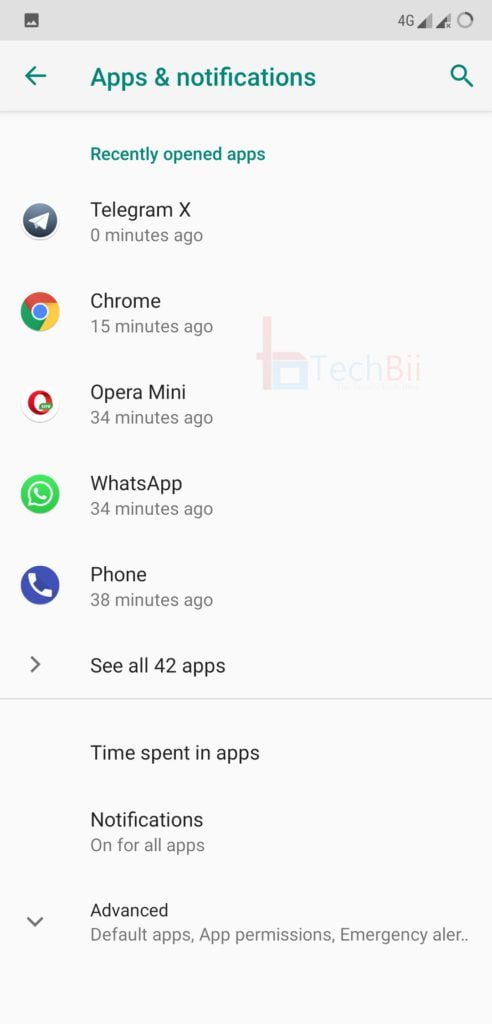
1. Go to Settings → Apps → See all apps, tap the three-dot menu, and choose Show system.
2. Find Download Manager (on Samsung: search "Download Manager" in the app list).
3. Tap Notifications.
4. Enable every channel listed — especially In progress and Completed.
5. Tap In progress and set its behaviour to Alerting or Silent — just not Off.
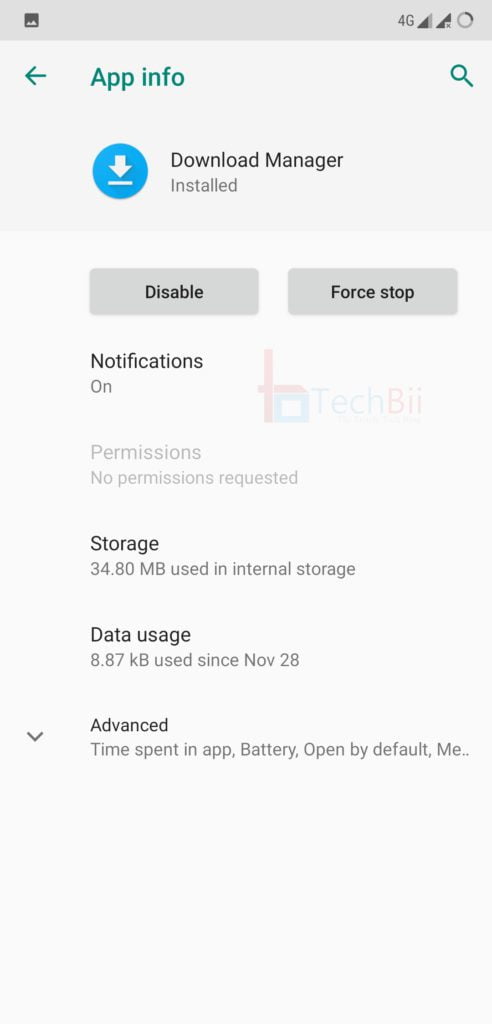
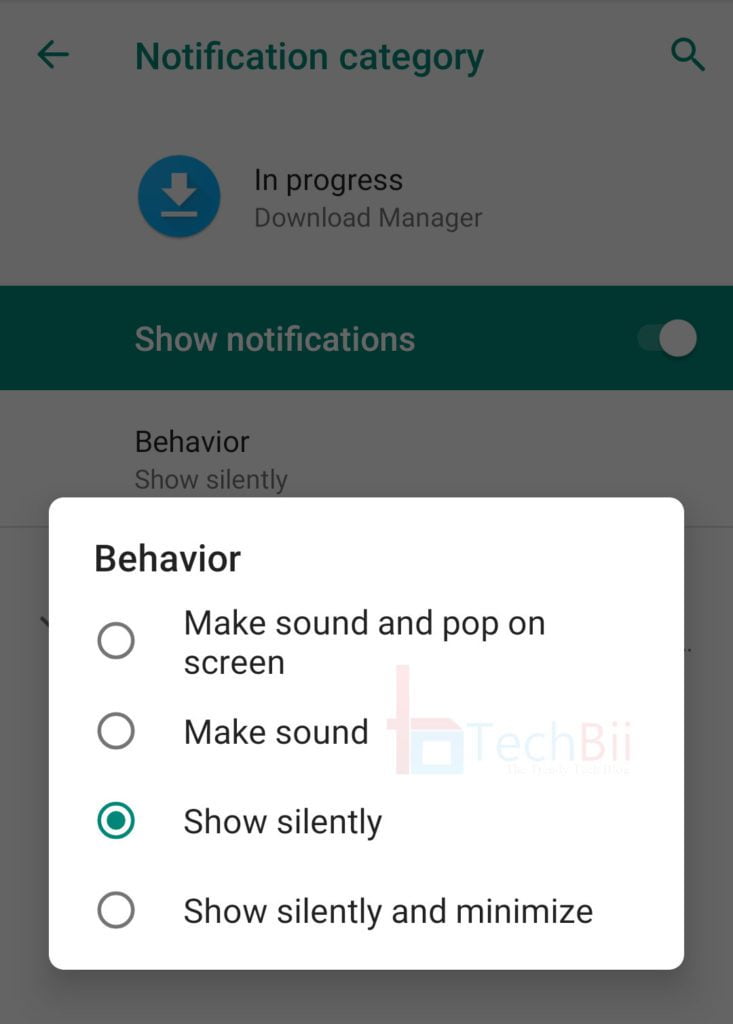
While you're here, confirm Download Manager isn't disabled outright: on its App Info page the button should say Disable (meaning it's active), not Enable.
Fix 3: Remove Download Manager From Battery Optimization
Aggressive battery saving kills background downloads — the phone suspends the transfer and with it the notification.
1. Settings → Apps → See all apps → Download Manager → Battery (or App battery usage).
2. Select Unrestricted (called "Allow background activity" on Samsung, "Don't optimize" on older builds).
3. Do the same for the app you download with, if it keeps suspending mid-transfer.
Fix 4: Check Data Saver and Background Data
Data Saver can block background data, and some downloads then stall invisibly:
1. Settings → Network & internet → Data Saver — turn it off, or tap Unrestricted data and whitelist Chrome/Play Store.
2. In App info for the downloading app, check Mobile data & Wi-Fi → allow Background data.
Fix 5: Exclude Notifications From Do Not Disturb and Focus Modes
The progress bar may actually be appearing — inside a silenced drawer you never open. Settings → Sound → Do Not Disturb (and any Focus/Routines modes on Samsung): check whether apps or notification types are being muted, and either whitelist your downloading apps or lower DND's aggressiveness. On HyperOS/MIUI, also open the notification shade settings and confirm nothing is set to "minimize silently."
Fix 6: Clear Download Manager's Cache and Reset App Preferences
If the notification system itself is wedged:
1. Settings → Apps → Show system → Download Manager → Storage → Clear cache (Clear data is safe too — it only resets download queues).
2. If that doesn't do it: Settings → System → Reset options → Reset app preferences. This re-enables disabled system apps and restores default permissions — it deletes no personal data.
Reboot after either step, then test with a small download.
Fix 7: The Custom ROM Fix (Data Transfer Tool)
This is the bug I hit personally on Android Pie-based ROMs — LineageOS, Nitrogen OS, Arrow and friends — where download progress vanished from the shade on the Play Store and Chrome alike. The culprit is the Data Transfer Tool system app:
1. Settings, search for Data Transfer Tool.
2. Open it and tap Disable.
3. Then apply Fix 2 (Download Manager → Notifications → all channels on, "In progress" set to Show silently/Alerting).
4. Reboot.
After the reboot, start a download — the progress icon should be back in the notification bar. I've seen this fix survive ROM switches, so if you flash a new build later, expect to repeat it.
Still Not Working?
Test in Safe Mode (hold power → long-press Reboot) — if progress bars appear there, a third-party app is suppressing notifications, and the newest installed apps are the usual suspects. And if a specific app never shows progress while others do, that app may simply not implement progress notifications; files still land in the notification's completion entry or the app's own downloads screen.
FAQ
Why did download progress disappear after updating Android?
Major updates reset notification permissions and app preferences. On Android 13 and later the new runtime notification permission is the usual casualty — apps that updated or re-enabled after the update start with notifications off. Re-check Fixes 1 and 2 after every major OS update and the progress bars return.
Where do I find Download Manager on my Android phone?
Download Manager is a hidden system app. Open Settings → Apps → See all apps, tap the three-dot menu in the corner, and choose Show system — it's listed there alphabetically. On Samsung phones, use the search icon in the app list and type "Download Manager." It handles downloads for Chrome, Play Store and most browsers.
Is it safe to disable the Data Transfer Tool app?
Yes — it's the app used only when setting up a phone from a backup or migrating data between devices. Disabling it doesn't affect daily use; just re-enable it temporarily when you next set up a new phone. On custom ROMs it's the known trigger for the missing download-progress bug, which is why disabling it is the fix.
Why does my download show "downloading" but no progress bar or percentage?
That usually means the notification channel is set to Silent or minimized, so the entry appears without a live progress bar — check Fix 2's channel behaviour. If the transfer itself is stalled (0 bytes), it's Data Saver, battery optimization or a server issue: switch to Wi-Fi, whitelist the app, or restart the download entirely.
Does clearing Download Manager data delete my files?
No. Clearing Download Manager's data only resets its queue and settings — already-downloaded files stay wherever they were saved (typically the Downloads folder). You'll only lose in-progress downloads, which restart from scratch the next time you tap the link. Personal files are never touched by this step.
Related Reading
- Android Phone Running Slow and Freezing? Causes and Fixes
- Android Wi-Fi Says Connected, No Internet: 12 Real Fixes
- 9 Fixes for the "Problem Communicating with Google Servers" Error
—
I've flashed more custom ROMs than I'd like to admit, and this notification quirk is the one I get asked about most — tell me your phone and Android version in the comments if none of the fixes land.